 ScreenGrab
Pick exactly what you need
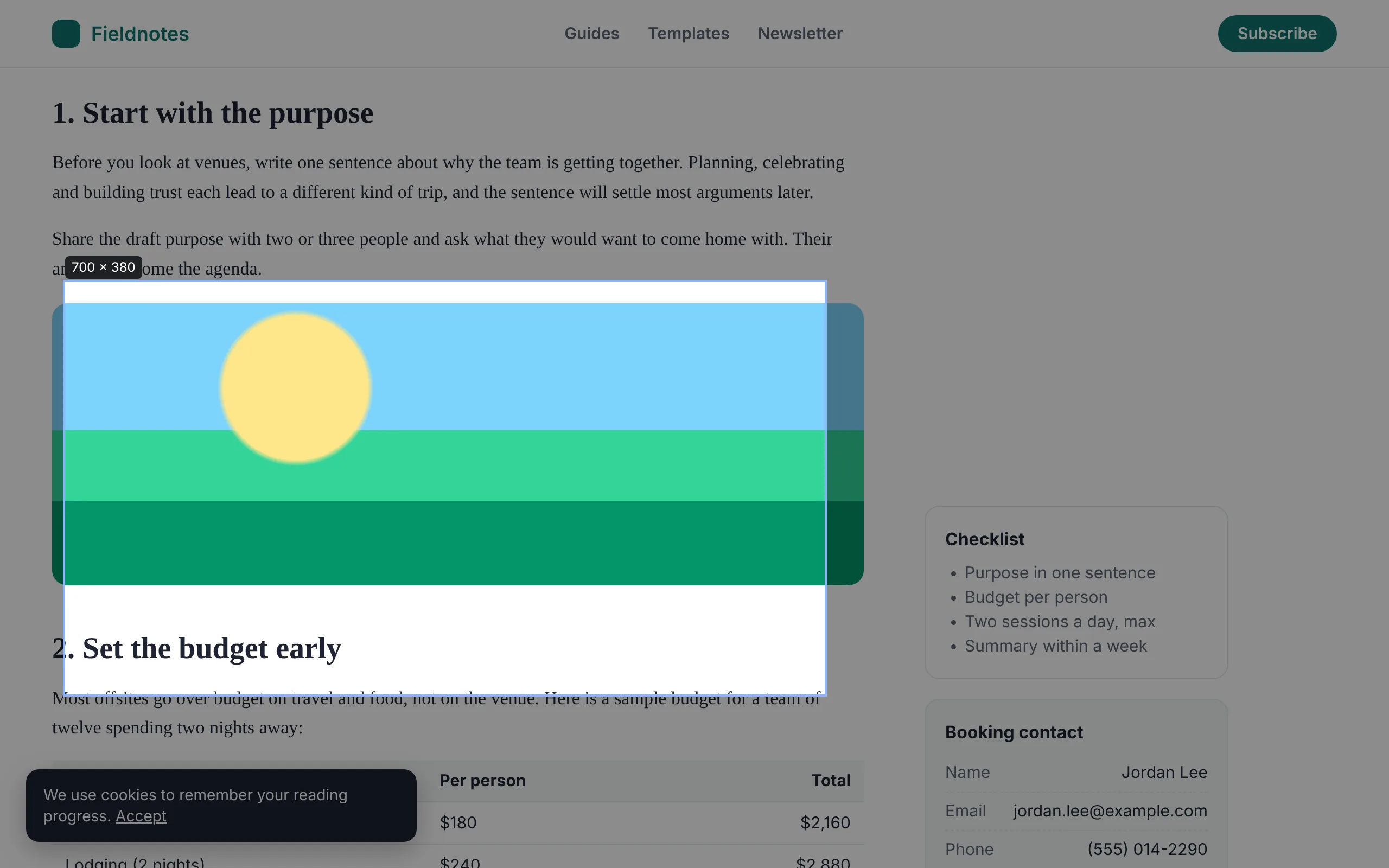
Press Alt+Shift+S and drag. The size shows as you go, and dragging past the bottom of the window keeps scrolling.
- Click any element to grab just that
- Selections can be taller than your screen
- Esc cancels at any time
ScreenGrab scrolls, stitches and saves any web page as one clean image or PDF, then lets you mark it up before you share it.
Features
Long articles, receipts, dashboards, bug reports, design reviews. ScreenGrab handles the awkward pages, and the editing is free.
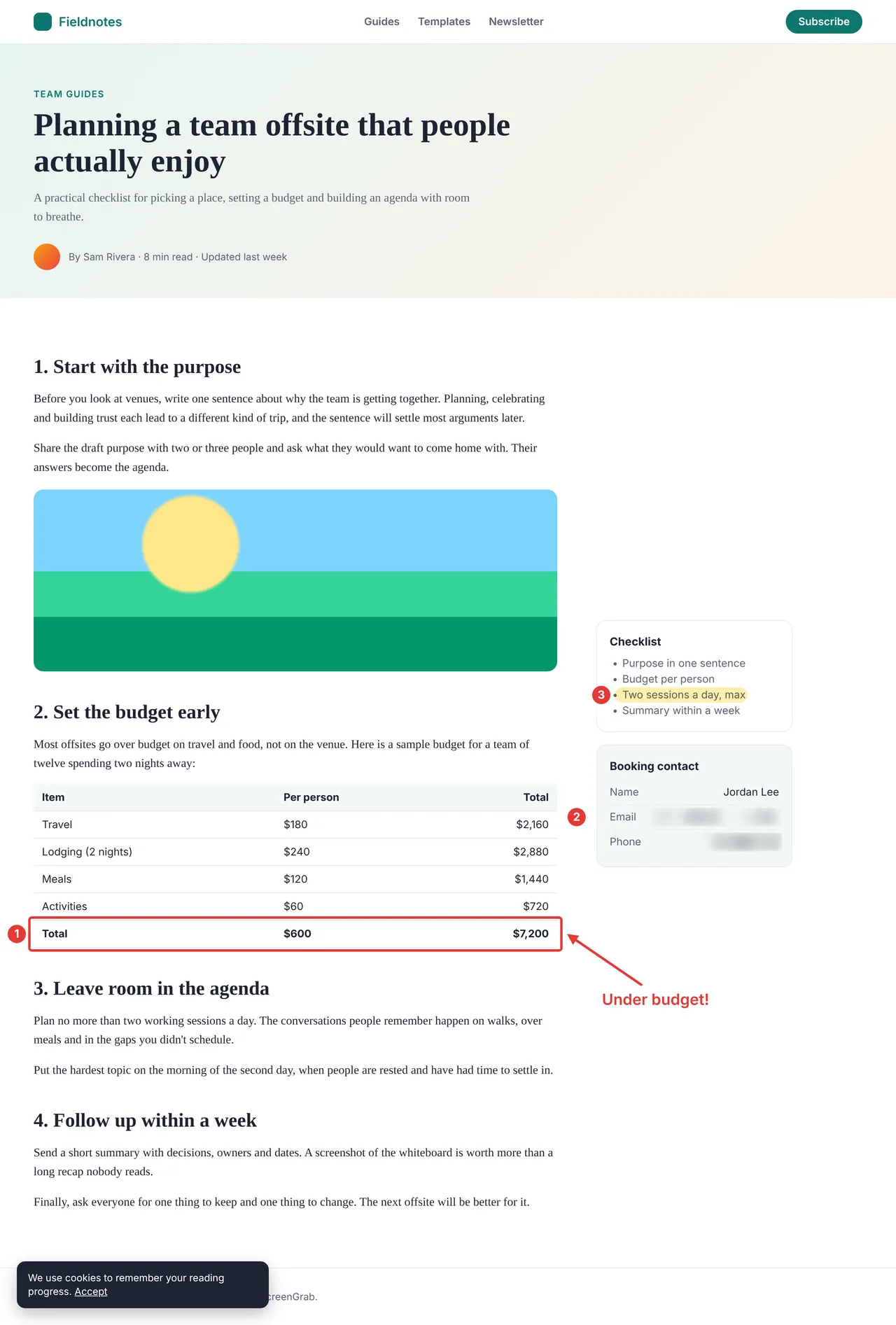
ScreenGrab scrolls the page for you and joins every screen into one sharp image, then puts you back where you were.
Web apps that scroll inside a panel are unrolled. Sticky headers show up once. Images that load as you scroll are filled in.
Drag a box around any area (the page scrolls when you reach the edge), or click once to capture a single element.
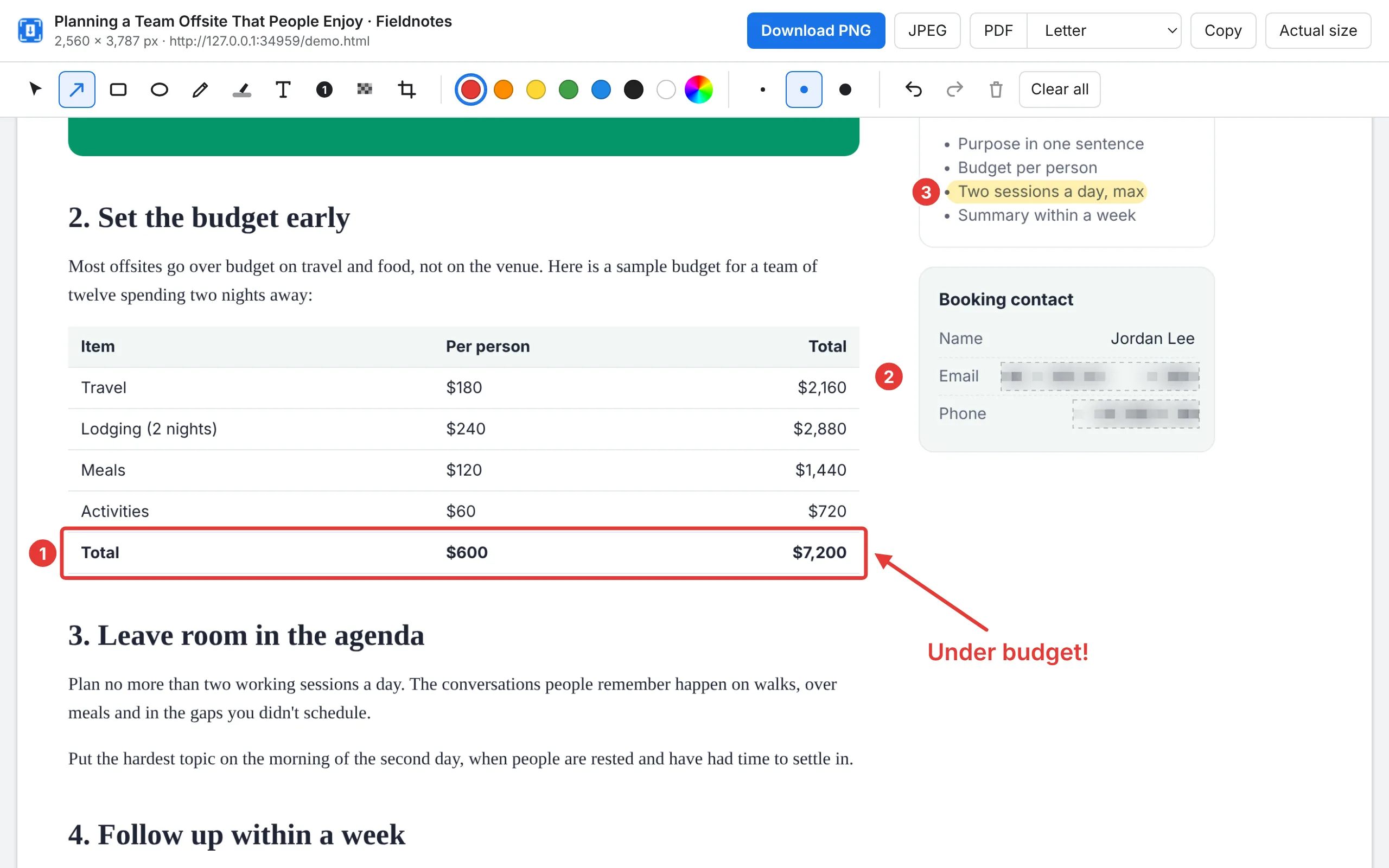
Arrows, boxes, circles, pen, highlighter, text and numbered steps, with undo and crop. No upgrade needed.
Blur emails, names and numbers before you share. ScreenGrab pixelates first, so the blurred text can't be read back.
Letter, Legal, A4 or one long page, with page breaks placed in the gaps between lines. Or save PNG, JPEG, or copy it.
Take the tour
Every screenshot here was made with ScreenGrab on a sample article.
Press Alt+Shift+S and drag. The size shows as you go, and dragging past the bottom of the window keeps scrolling.
Point at the number that matters, number the steps, and blur the details nobody else should see. Then download or copy.
One click, and the full article comes back as one image: the site header once at the top, the cookie notice once at the bottom.
How it works
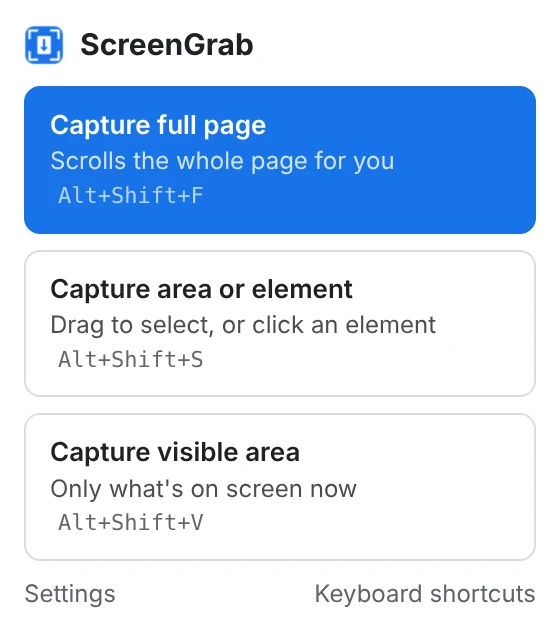
Pick full page, an area, or what's on screen. Or press Alt+Shift+F.
A small progress bar shows how far along it is. Your page is left exactly as it was.
Your capture opens in a new tab. Mark it up, then save PNG, JPEG or PDF, or copy it.
Get ScreenGrab
ScreenGrab is on its way to the Chrome Web Store. Until it's listed, you can install the same extension directly.
Download ScreenGrab (.zip)Works in Chrome, Edge, Brave, Opera, Vivaldi and other Chromium browsers.
Privacy
ScreenGrab works entirely inside your browser. There's no ScreenGrab server, so there's nowhere for your screenshots to go.
Standing access to every page you visit, whether you're taking a screenshot or not.
Chrome lets ScreenGrab see a page only after you click its icon or press its shortcut, and only that one tab.
Compare
Chrome has screenshots built in, but they live inside Developer Tools and only save plain PNG files.
| What you can do | Chrome Developer Tools | ScreenGrab |
|---|---|---|
| Screenshot the whole page | ✓Through a command menu | ✓One click or shortcut |
| Screenshot an area or element | ✓Through a command menu | ✓Drag or click |
| Unroll panels that scroll inside the page | – | ✓ |
| Select an area taller than the screen | – | ✓ |
| Arrows, boxes, text, highlighter and numbered steps | – | ✓ |
| Blur private details and crop | – | ✓ |
| Save as PDF with clean page breaks | – | ✓ |
| Save as JPEG or copy to the clipboard | – | ✓ |
| Split very tall pages into numbered parts | – | ✓ |
To find Chrome's version: open Developer Tools, press Ctrl+Shift+P (Cmd+Shift+P on a Mac) and type "screenshot".
Pricing
Capturing, editing and saving cost nothing, with no limits. Pro is coming for people who capture pages for work.
$0
Everything below, for as long as you like.
$15 / year
Or $39 once. Planned price, with a free trial at launch.
Questions
Yes. Capturing, editing and saving are free, with no limits, no watermark and no account. A paid Pro plan is planned for work features like searchable PDFs and batch capture; nothing in the free version will move behind it.
Click the ScreenGrab icon and choose Capture full page, or press Alt+Shift+F. ScreenGrab scrolls, joins the screens together and opens the result in a new tab.
Nowhere but your computer. They're made and edited in your browser and saved to your Downloads folder. ScreenGrab has no server and no account.
Yes. ScreenGrab captures what your own browser shows, so signed-in pages work like any other.
When the page itself doesn't scroll, ScreenGrab finds the panel that does and captures all of it.
Headers, cookie notices and chat buttons that stay on screen are shown once: headers at the top, notices and buttons at the bottom.
Very long. Pages taller than one image can hold are split into numbered parts automatically. Endless feeds stop at a maximum height you can change in Settings.
Yes: US Letter, Legal, A4 or one long page. Page breaks fall between lines of text, so no line is cut in half.
Alt+Shift+F for the full page, Alt+Shift+S for an area or element, and Alt+Shift+V for what's on screen. Change them at chrome://extensions/shortcuts.
Chrome doesn't let any extension capture its own pages (like settings), the Chrome Web Store, or its built-in PDF viewer.
Free, private, and ready in under a minute.
Get ScreenGrab